AI retouching in Photoshop, tested on real client volume: the Remove tool, Generative Fill, and Retouch4me batch pipelines — where AI is fast, where it fails.
Key Takeaways
Photoshop's retouching capabilities have evolved dramatically with neural models and generative tooling. But in a commercial studio handling hundreds of deliverables every month, the question is never 'what can the AI do?— it is 'which tools deliver repeatable, artifact-free quality without compromising client branding?'
After hundreds of commercial shoots across Dehradun and Northern India, we have synthesized a hybrid retouching pipeline that marries automated cleanup speed with uncompromising human art direction.
Adobe now provides multiple overlapping cleanup options. Knowing which one to reach for saves hours:
- The Remove Tool: Best for rapid micro-cleanup on textured surfaces (dust specks, lint on fabrics, stray hairs, sensor spots). Because it evaluates surrounding pixel context locally in real-time, it preserves underlying texture far better than legacy healing brushes.
- Generative Fill (Firefly): Best for macro object removal in complex environments (e.g., removing a boom stand reflected in a background surface, or extending a studio backdrop seamlessly). The golden rule is selection precision: a tight, feather-edged lasso selection yields infinitely cleaner results than loose bounding boxes.
- Content-Aware Fill: Still preferred over generative fill when extending purely repetitive, geometric textures (such as a wood grain tabletop or seamless paper sweep) where generative AI might invent unwanted fictional details.
- Clone Stamp & Healing Brushes: Still mandatory for brand logos, sharp typographic labels, and fine metallic highlights where AI tools tend to hallucinate or blur micro-geometry.
To handle high-volume e-commerce catalogs and luxury campaign hero shots efficiently, our studio runs a structured four-stage process:
1. First Pass — Color Sync & Lens Correction: RAW files are balanced against ColorChecker targets in Lightroom Classic. Lens chromatic aberrations and perspective distortions are corrected.
2. Second Pass — Automated Batch Dust & Masking: Batch cleanup tools like Retouch4me run at 50% intensity to strip baseline surface dust across entire sets without softening genuine product textures.
3. Third Pass — Photoshop Precision Crafting: Hero shots receive manual frequency separation, dodge and burn for dimensional shaping, and precise label cleanup. Learn more in our Retouching 101 guide.
4. Fourth Pass — 100% Quality Assurance: Every image is inspected at 100% magnification on calibrated monitors for color drift, haloing around masks, and texture authenticity.
The greatest danger of automated retouching is over-smoothing. A hand-crafted ceramic bowl has subtle glaze variations; an artisanal leather boot has organic grain. When automated filters obliterate these textures, the product looks synthetic and cheap. AI handles the repetitive labor; the photographer's eye protects the brand's tactile soul.
Looking for commercial product imagery that combines modern turnaround speeds with meticulous craftsmanship? Explore our services or reach out to discuss your project.
No — it replaces the repetitive 70%. AI cleanup tools handle sensor dust, stray fibers, and batch skin or surface smoothing well, but brand-critical work (label typography, specular geometry, product-specific texture) still needs a human retoucher making judgment calls.
Photoshop's Remove tool and Generative Fill for object removal and context-aware fills, Retouch4me plugins for high-volume batch cleanup (dust, skin, cloth), and Topaz for detail recovery. Each earns its place only when output survives 100% zoom inspection.
Marketplaces allow cleanup of the product and background — dust, scratches, stray props. They prohibit misrepresentation: AI-generated textures that alter what the customer will physically receive can trigger returns and account-level complaints.
Lock the pipeline: identical tool settings per batch, calibrated monitors, a color-graded reference frame, and human QC on a random sample plus every hero frame. Consistency is a process problem, not a tool problem.
About the author
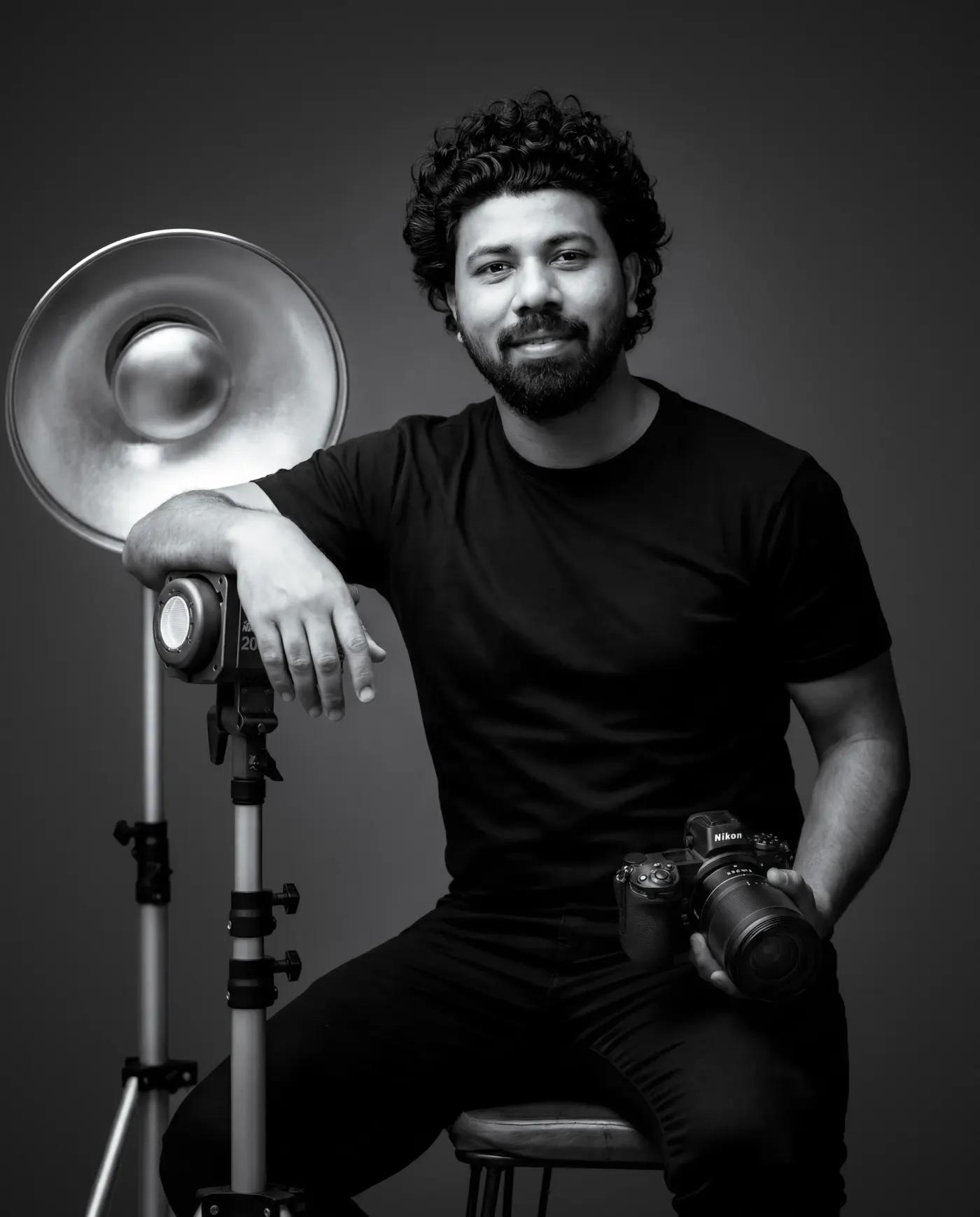
Commercial product photographer based in Dehradun, India. 6+ years shooting product, food & beverage, and advertising campaigns with in-house retouching. Serving brands across Uttarakhand and pan-India.
View full profile →Commercial photo retouching explained stage by stage: culling, ColorChecker color calibration, non-destructive cleanup, frequency separation, and multi-format delivery.
AI & PhotographyAI product backgrounds done right: match key-light angle, hardness, and color temperature before you shoot, then composite with a three-pass pipeline that never looks fake.
AI & PhotographyWill AI replace product photographers? After 12 months of AI tools on live commercial shoots: what genuinely accelerates production, and where physics and brand accuracy still demand a studio.
See high-resolution commercial campaign and product results.
View commercial retouching in our portfolio →